 Relay
Guides Set up
Connect ChatGPT
Relay uses your ChatGPT account to work the carrier sites. Connect it once on each computer.
Before you start. Your agency tells you which ChatGPT account to use. Signing in to Relay doesn't connect ChatGPT; they're separate accounts.
Step 1: Open Settings
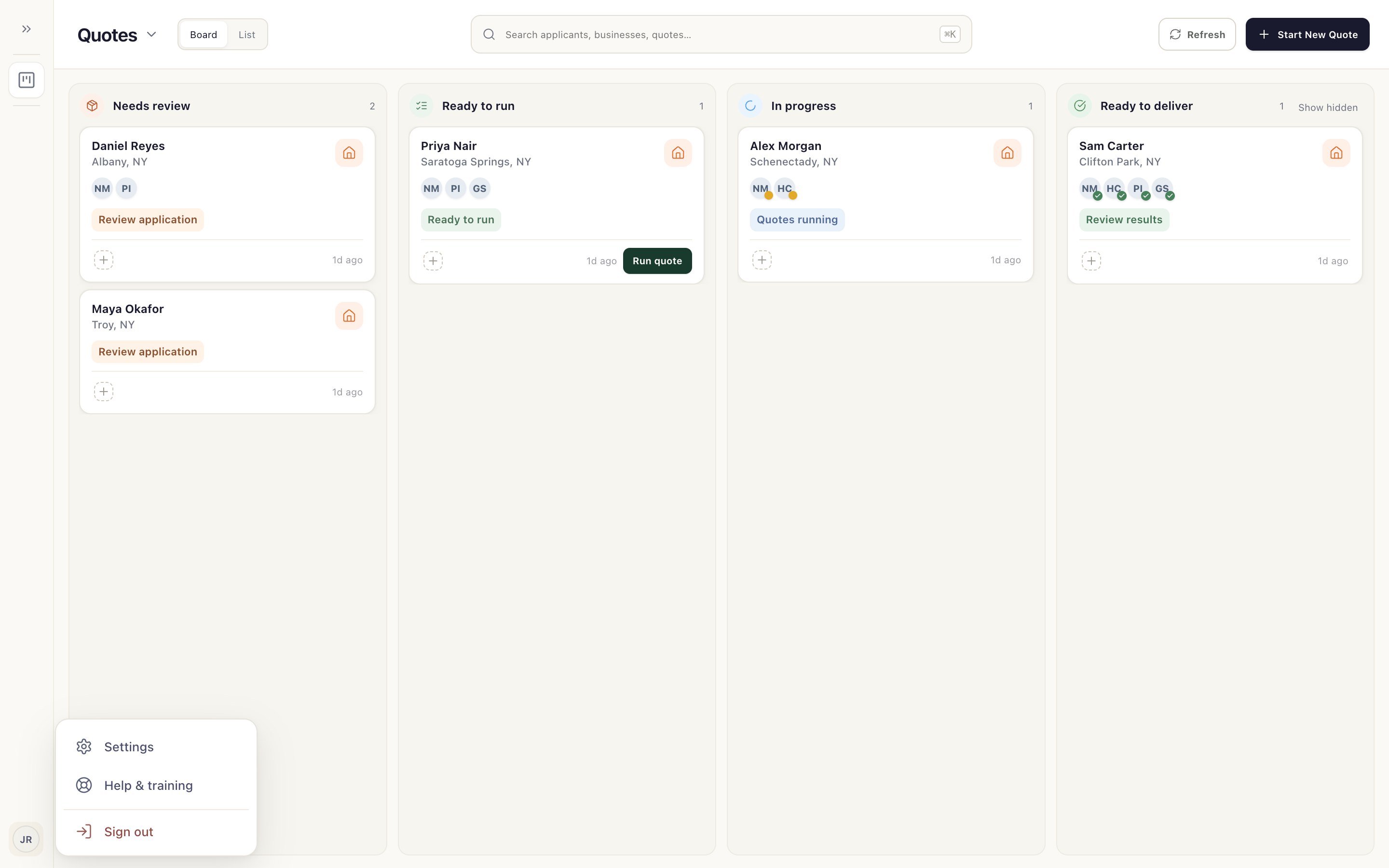
Open your account menu at the bottom left and choose Settings 1, then Assistant.
Step 2: Sign in with ChatGPT
Choose Sign in with ChatGPT. The sign-in opens in your web browser. Finish it there, then come back to Relay; the page updates by itself.
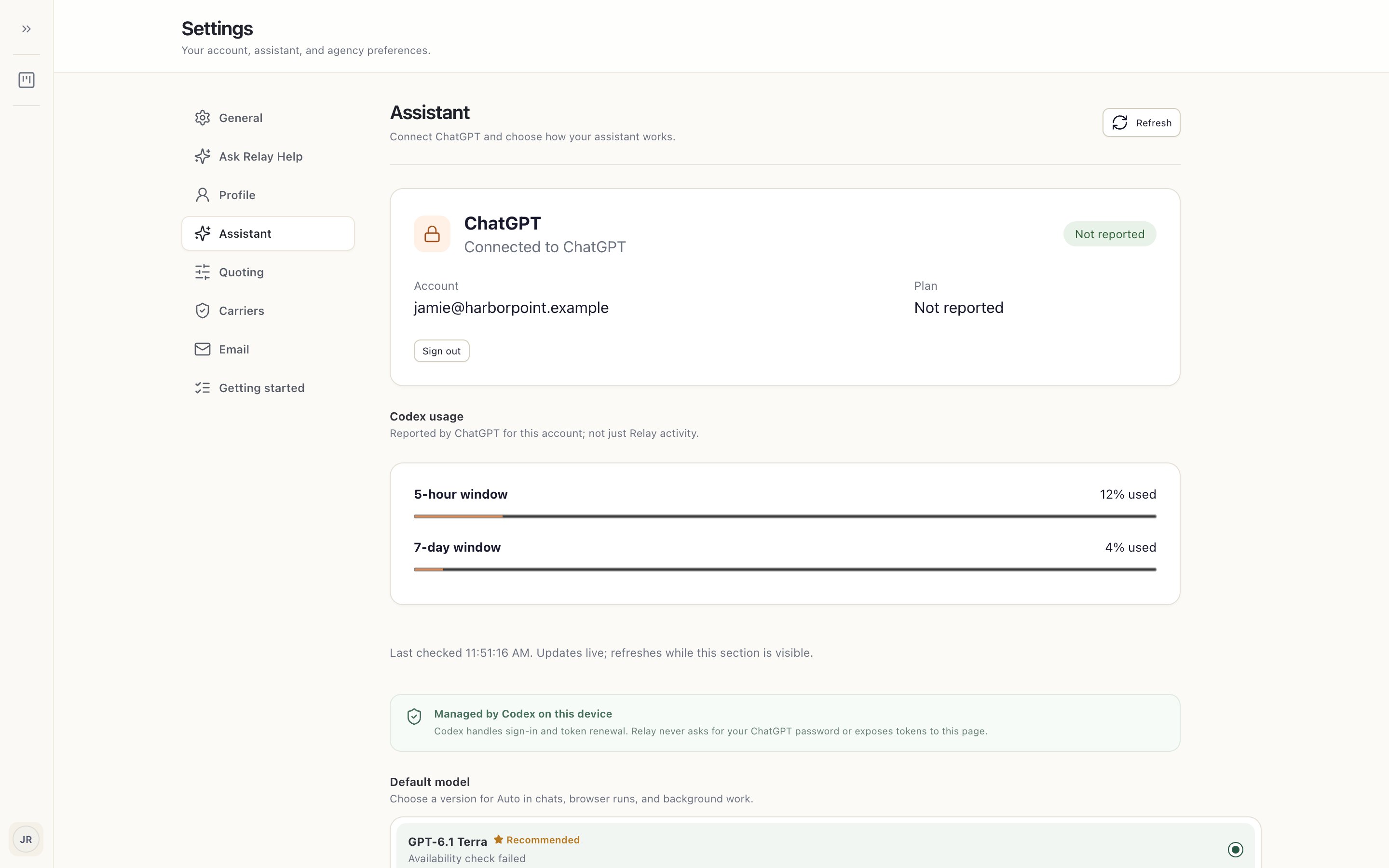
When it's done, you'll see Connected to ChatGPT 1 and the account you used.
Relay never asks for your ChatGPT password. Sign-in and renewal are handled on this computer.
Step 3: Keep an eye on usage
Codex usage 1 shows how much of your ChatGPT account's limits are used. It's reported by ChatGPT for the whole account, not just Relay.
If a quote stops with a usage or limit message, tell your agency administrator what it said.
Something not working?
The ChatGPT sign-in page won't load.
Some company networks block ChatGPT. Your IT team needs to allow it; see IT prerequisites.
I connected, but Relay still says sign-in needed.
Choose Refresh on the Assistant page. If you started a sign-in and closed the browser, start it again.