 Relay
Guides Quote
When a carrier needs you
Sign in, answer a question, or find out why a carrier paused, then let Relay carry on.
Step 1: Find the carrier that's waiting
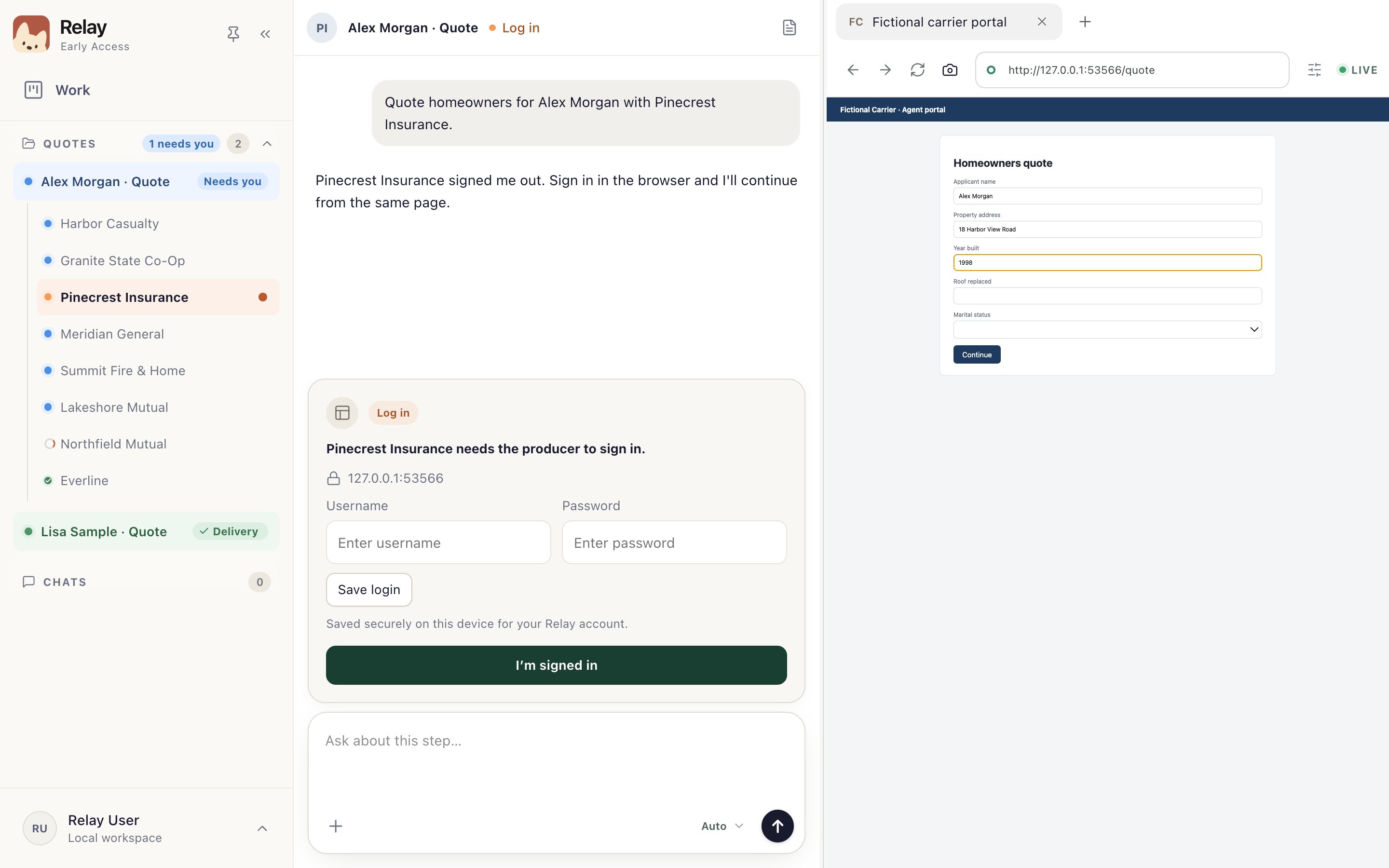
Needs you 1 appears next to the quote, and the carrier waiting on you is highlighted 2. Open it.
Step 2: Sign in to the carrier
Most first-run pauses are a sign-in. Sign in on the carrier's page on the right 1 and enter any code the carrier sends you. Then choose I'm signed in 2 and Relay continues from the same page.
To save your login for next time, enter it in the card and choose Save login 3. Relay fills in your username and password on that carrier's sign-in page, but never clicks Sign in for you.
Never paste a password or MFA code into the chat.
Step 3: Answer a question
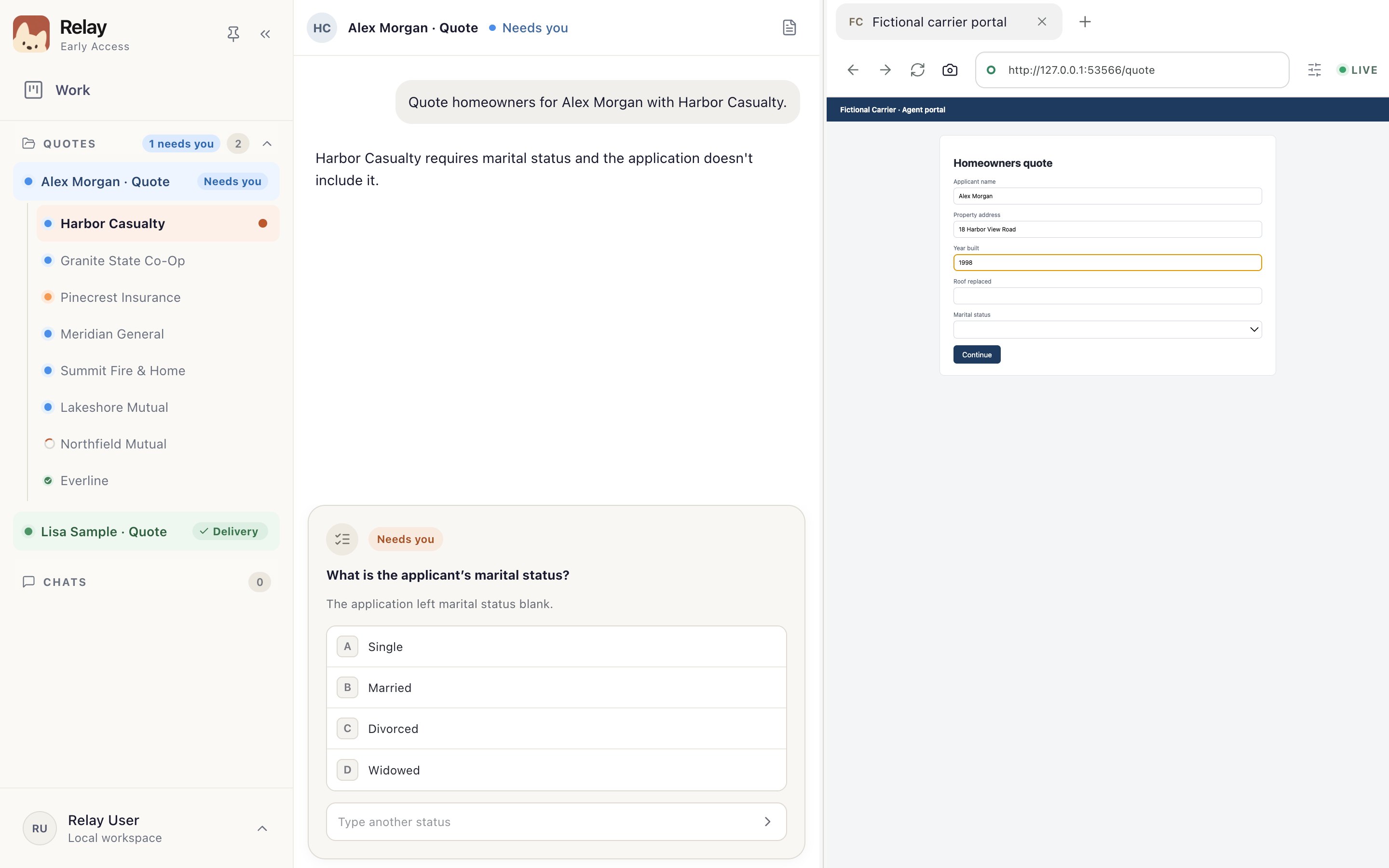
Sometimes the carrier asks for something the application doesn't say. Choose an answer 1 or type your own 2. If you don't know, ask the client first.
Step 4: Anything else
Read the last message in the chat; it says what the carrier is waiting for. A pause on its own doesn't tell you the cause. A carrier site that's down may need time to come back.
Don't start a second quote for the same client to get past a pause. It duplicates the work. Stay in the quote you have.
Something not working?
Where are saved logins kept?
On this computer only, in the Mac Keychain or Windows Credential Manager. They don't sync, so save each login once on each computer.
It keeps asking me to sign in.
Carrier sessions expire on the carrier's schedule. Sign in again on the carrier's page and choose I'm signed in.