 Relay
Guides Start here
Run your first real quote
Take one real submission from start to carrier results you can send, then do it again on your own.
Before you start. You need five things: Relay signed in with the email from your agency invitation, ChatGPT connected in Settings › Assistant, at least one carrier in Settings › Carriers, your own login for that carrier's website (and your MFA codes), and one real submission for a line your agency quotes in Relay. Missing one? Fix it first: Connect ChatGPT, Check your carriers.
Step 1: Pick an easy first submission
One line of business, one or two carriers you quote every week, and a complete application. Keep the messy one for your third quote.
The practice quote in Getting started uses a made-up client and fictional carriers. It shows you where things are, but it doesn't check ChatGPT, your carriers or your carrier logins. This is the real thing.
Your Relay sign-in, your ChatGPT account and your carrier logins are three separate accounts. Signing in to one never signs you in to the others.
Step 2: Start the quote
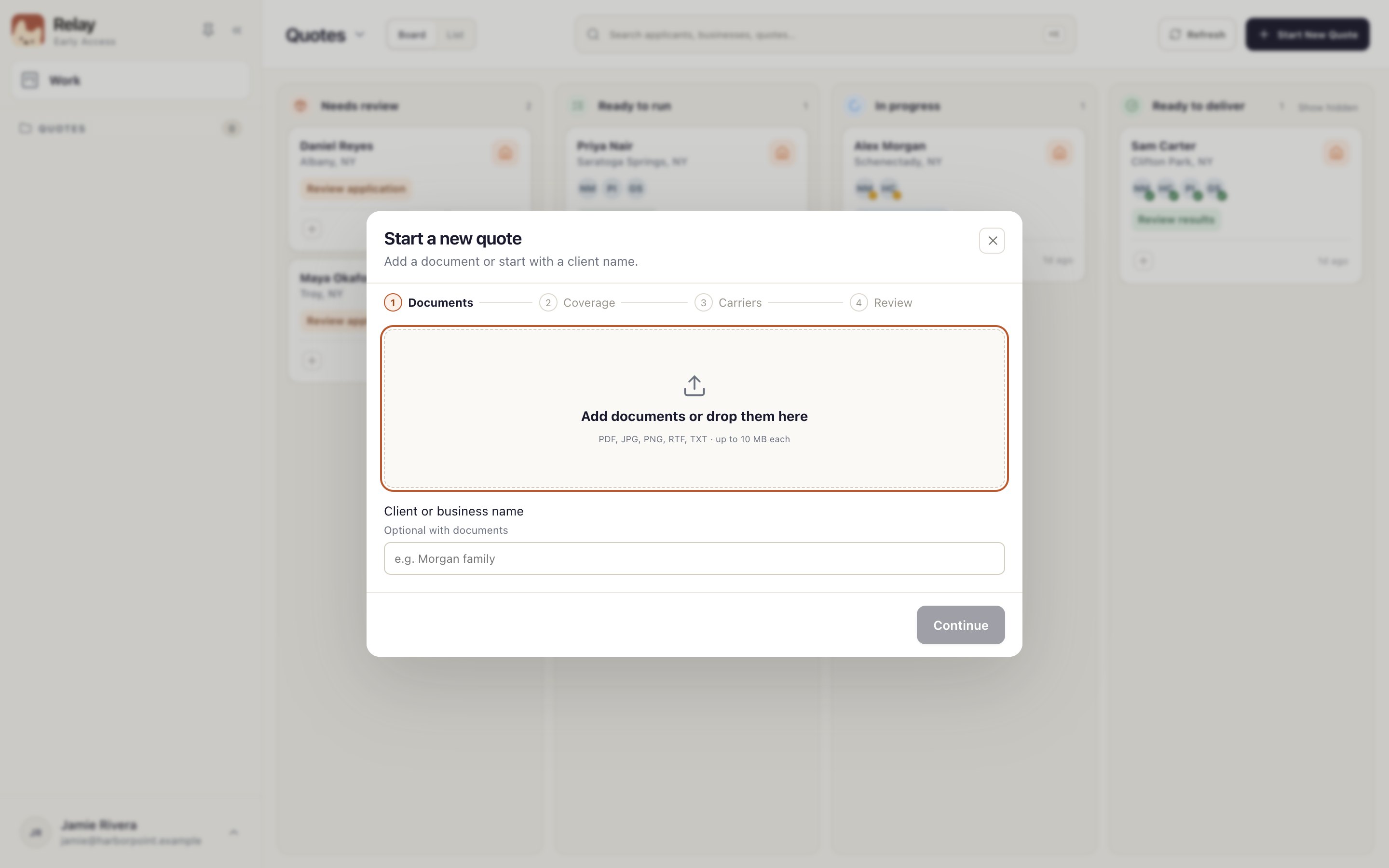
On the Work board, choose Start New Quote. Add the application or other documents 1, or type the client's name 2 if you don't have a document yet. Then choose the coverage and carriers.
The new card lands in Needs review. Nothing has gone to a carrier. See Start a quote.
Step 3: Check the application
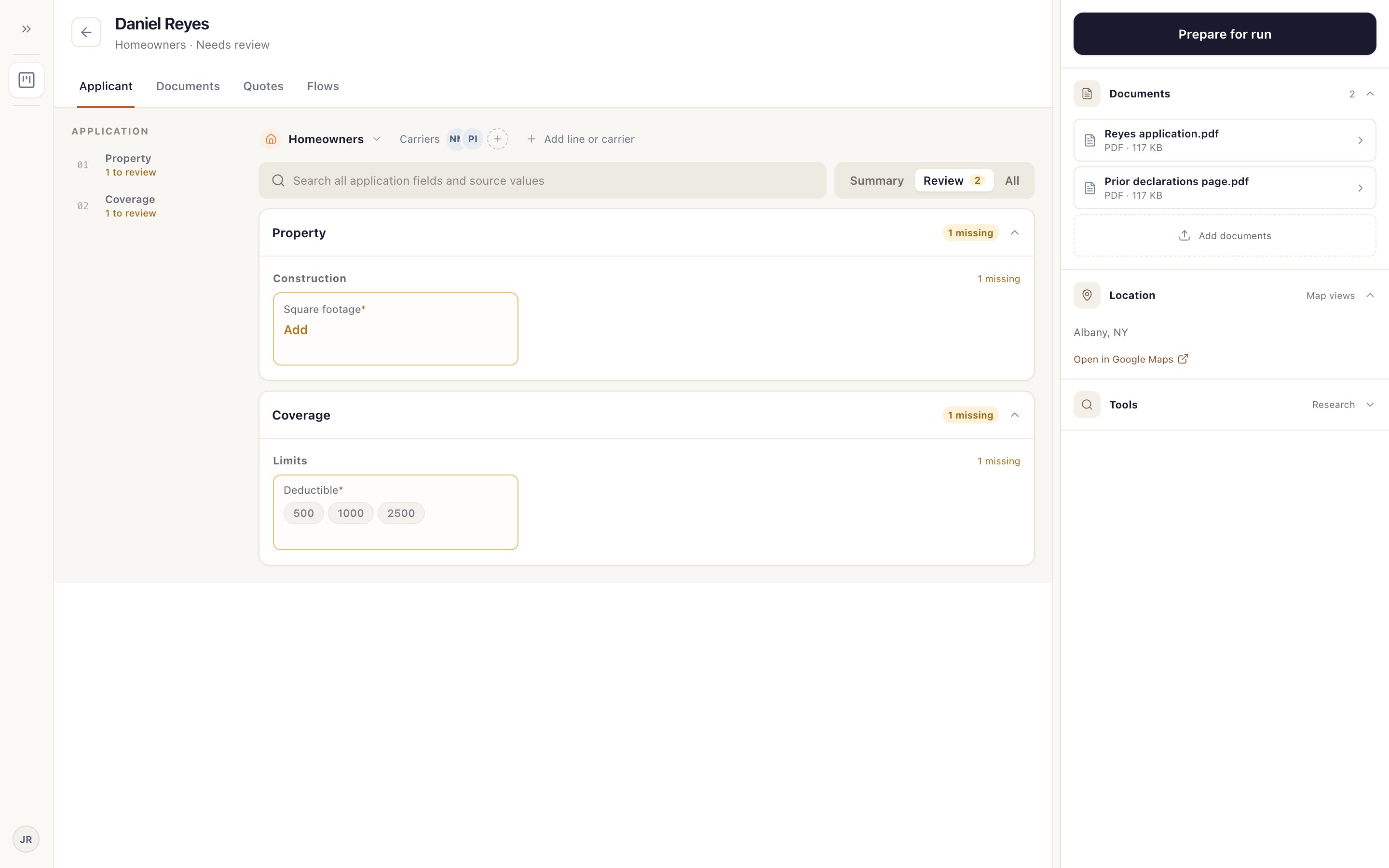
Open the card. Relay shows what it read from your documents. Choose Review 1 to see only what's still missing 2, and compare against your documents on the right.
A field marked with a star (*) that's still empty doesn't stop you from running. Fill what you know; leave the rest blank rather than guess. See Review the application.
Step 4: Prepare it for the carriers
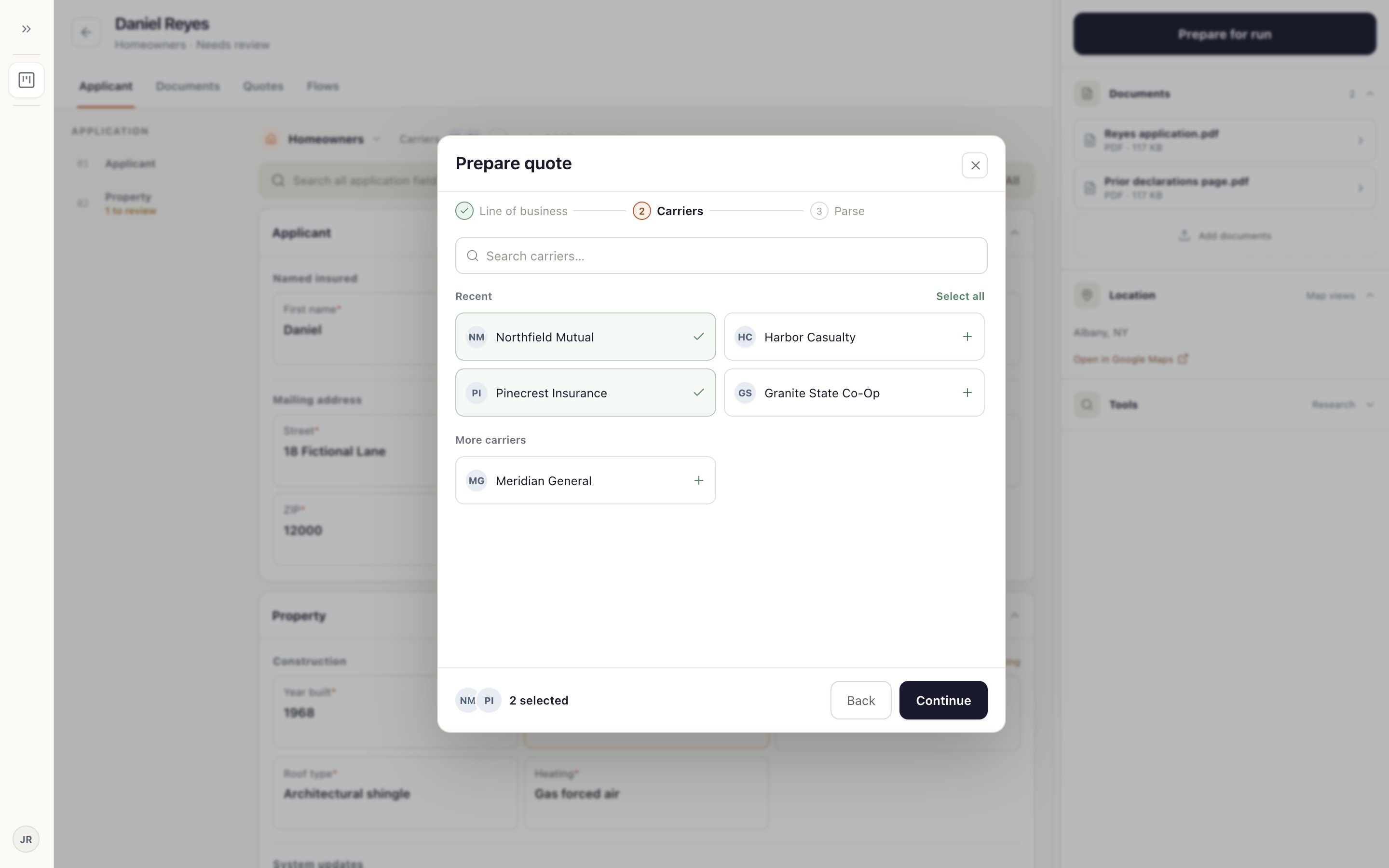
Choose Prepare for run. Check the carriers 1, choose Continue 2, add any instructions, then choose Move to Ready to run.
Step 5: Run it
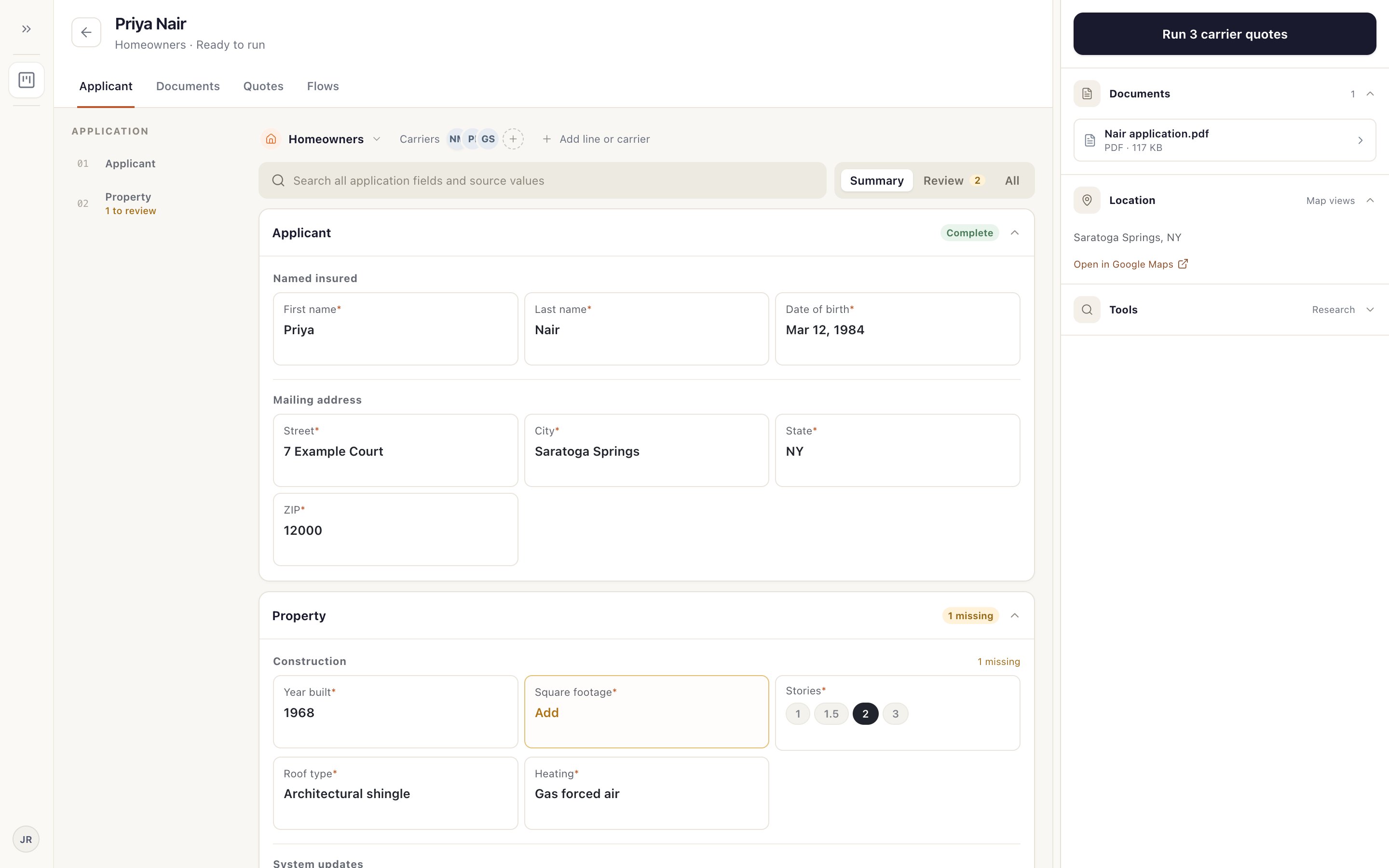
Open the card in Ready to run and choose Run 3 carrier quotes 1 (the number matches your carriers). Relay opens a browser for each carrier and the card moves to In progress.
Step 6: Step in when a carrier needs you
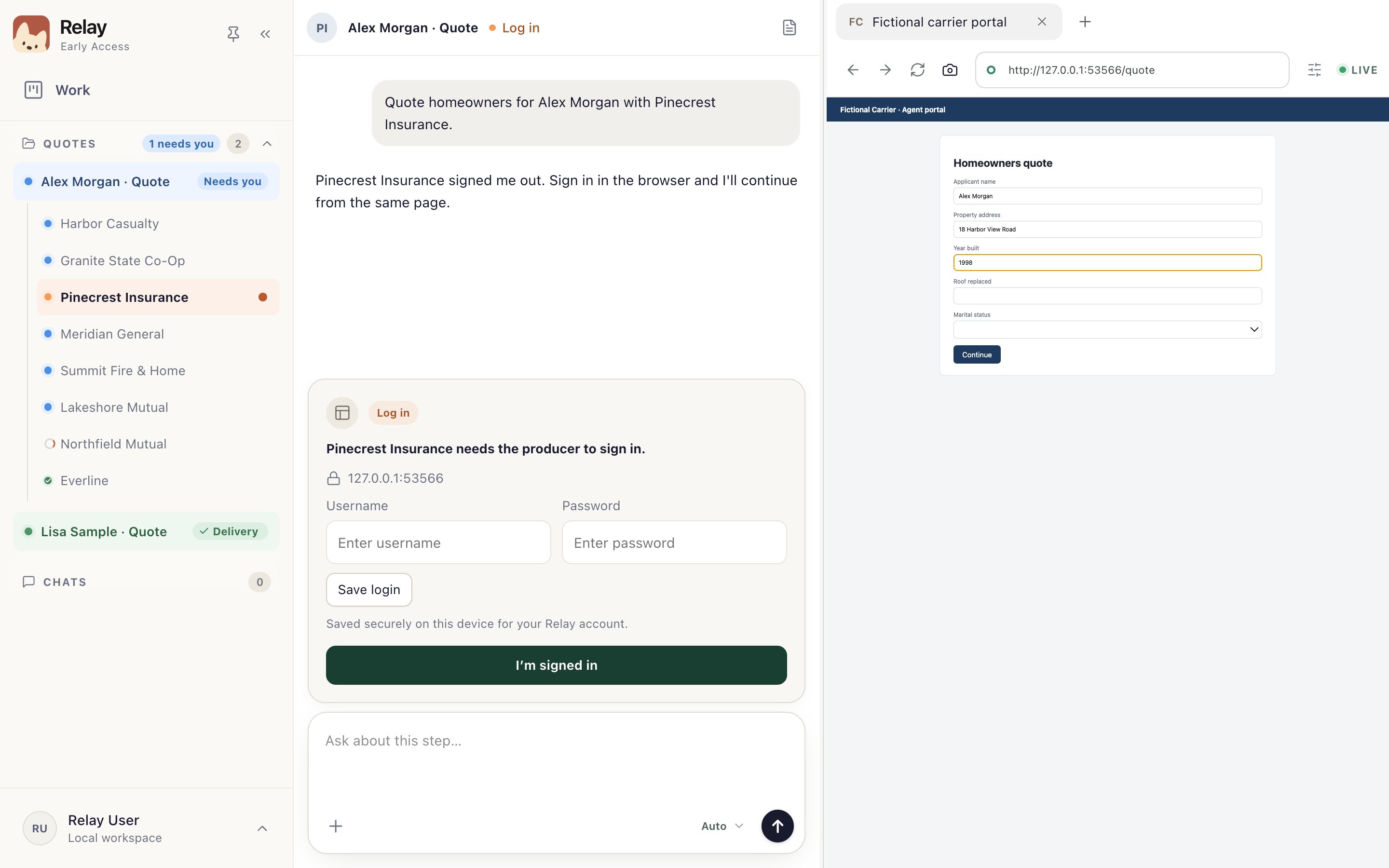
Expect this on your first run. A carrier marked Needs you 1 is waiting. Usually it's a sign-in: sign in on the carrier's page on the right 2, add any code the carrier sends you, then choose I'm signed in 3.
Never paste a password or code into the chat. See When a carrier needs you.
Don't start a second quote for the same client to get past a pause. It duplicates the work. Stay in the quote you have.
Step 7: Approve each carrier's result
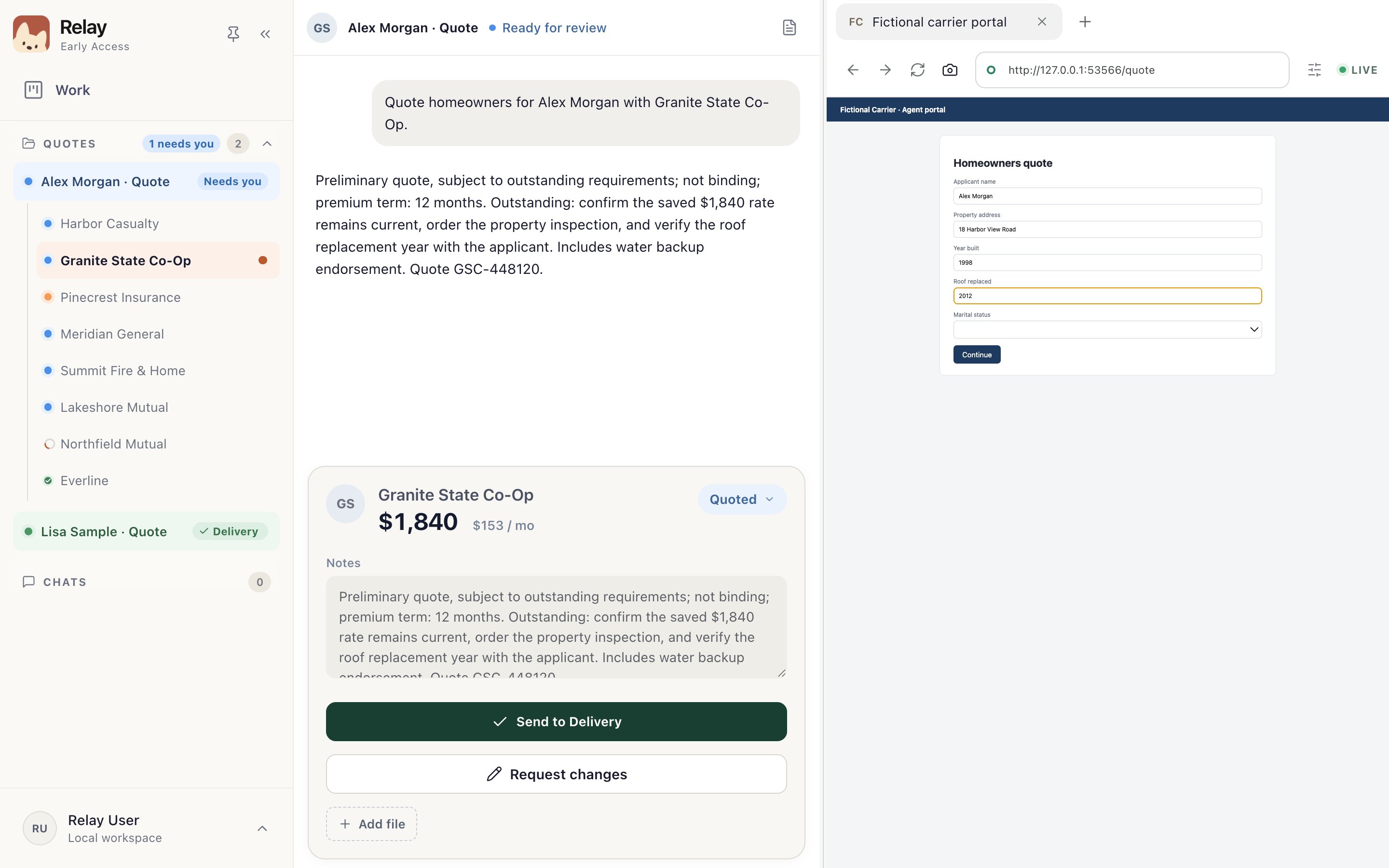
When a carrier finishes, check the premium and notes against the carrier's page, then choose Send to Delivery 1. If something's wrong, use Request changes 2 instead.
Step 8: Review the results and send them
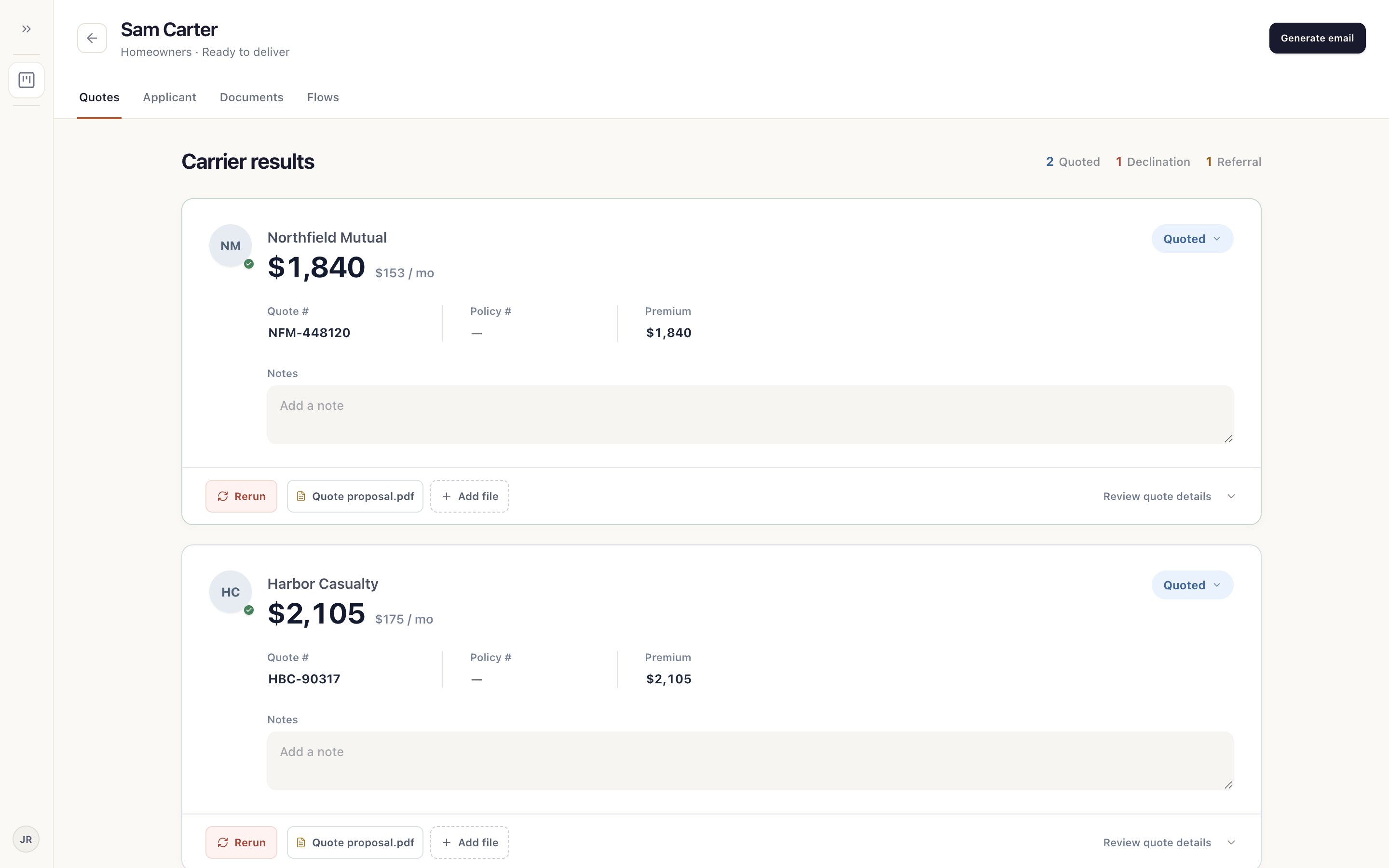
The card moves to Ready to deliver. Open it: Quotes lists every carrier's result. When you're happy, choose Generate email 1, check it, and send it. See Review results and send the email.
A finished run still needs your review. Relay doesn't send anything to a client on its own.
Step 9: Do the next one without this page
You're done when you've opened real carrier results for a real client and you'd be comfortable sending them. Now run your next submission on your own.
If something stopped you, note the screen and the last chat message and tell your agency administrator. Troubleshooting covers the common ones.
Something not working?
I can't see any carriers.
Your administrator sets up carriers for the agency. Installing Relay and signing in doesn't add any. Check Settings › Carriers and ask your administrator if yours is missing.
ChatGPT won't connect.
Finish the sign-in in your web browser, then come back to Relay. If the page won't load at work, your IT team may need to allow it. See IT prerequisites.
Do I have to fill in every field marked with a star?
No. Empty starred fields don't stop a run. If a carrier needs one of them, the run pauses and asks you.